Monday, August 4, 2008
1. Open Outlook 2007
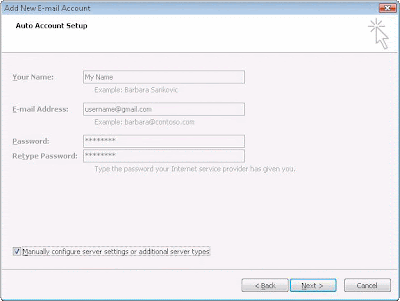
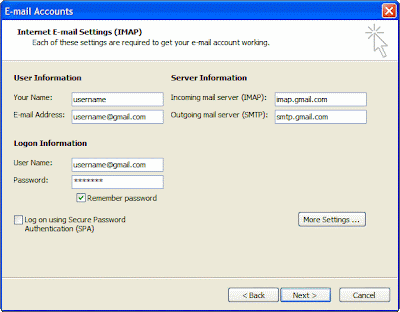
- Select IMAP; use given incoming/outgoing servers
- Username should be full gmail address
- After this screen, clicking Next takes you to the end of the setup.

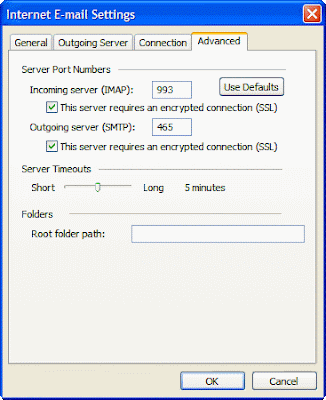
- Incoming server must be 993, and must use SSL Encryption
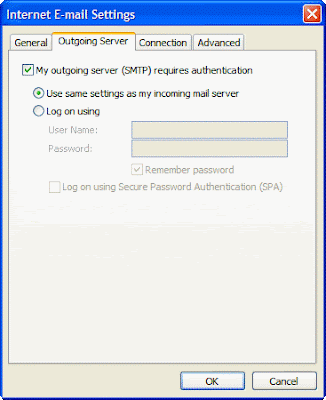
- Outgoing server can use 587, TLS Encryption.


1. Enable IMAP in Gmail. Don't forget to click save changes when you're done.
Saturday, May 24, 2008
 When trying to open the hard disk drive, an 'open with' window is prompting. What to do?
This is a problem caused by a virus. Even if you have an antivirus installed in your system, some virus can get into your system and cause this problem. Here the problem is caused by a virus in the form of a file called 'Autorun.inf' which is responsible for each drive to work in autorun mode. If you right click your drive you can see an additional item at the top of the shortcut menu as 'Auto'.You can simply solve the problem by removing the above mentioned file. But before that you should do some steps to find the file. The steps are as follows.
1. Go to the -> folder options
2. Select the View tab
3. Under 'Hidden files and Folders', uncheck the 'Hide protected Operating system files' option
4. Select option 'Show hidden files and folders' under hidden files and folders
6. Now press Ctrl+E to activate search and click - all files and folders
7. Enter "Autorun.inf" in the file name box
8. Now click- "More Advanced options" to see advanced options
9. Check 'Search system folders' , 'Search hidden files and folders' and 'Subfolders'
10. Click search and find the file named 'autorun.inf' with a root location such as c:\ or d:\ or so.
11. Delete the file from each drive. Now restart the system. Hurray! Problem solved!
You can simply solve the problem by following some easy steps as follows...
Boot up with the windows Xp cd in the drive and go to the recovery console when asked.
At the command prompt type: Bootcfg/rebuild and press enter
or
Copy drive:\i386\ntldr c:\
Copy drive:\i386\ntdetect.com c:\
* If you are prompted to overwrite the the file, type Y, and then press enter.
Sunday, May 4, 2008

This problem is cause by a virus. When the user tries to log in to the Orkut, a message is prompted as follows.
This is a problem caused by the virus called Heap41a.exe
To solve the problem temporarily, follow the steps,
Press Ctrl+Alt+Del to wake the Taskmanager
Go to the process tab and watch for svchost.exe
svchost.exe is a system process actually
but the virus will be working with the same name as processes
Now search and find svchost.exe with your current logged user name.
Not the svchost.exe with other such as LOCAL SERVICE, SYSTEM, NETWORK SERVICE
Right click the svchost.exe with current user name and Click end process.
Thats it! Now you can log into your Orkut account.
But the problem can occur again because the virus is still on your system. To permanently solve the problem, follow the steps
open my Computer on your desktop
Enter c:\heap41a on the address bar
This will show a collection of hidden files along with a file named svchost.exe
delete all the files by pressing Ctrl+A and then Shift+Del
If your are not allowed to delete the svchost.exe, first do the endprocess procedure we explained before, and continue with deleting again.
I strongly insist you to use an anti virus and antispyware to make your system free of viruses and spywares.
Friday, February 22, 2008
REG\add HKCU\Software\Microsoft\windows\current version\policies\system /v
DisableTaskManager /t REG_DWORD/d 0/f
User Configuration / administrative templates / system / Ctrl+alt+Delete options / Remove Task Manager
Solve the problem using the following steps
Click start, run and Type Services.msc and Click OK to launch the Services Window.
Select the item "Remote Access Auto Connection Manger"
Right click the item to select Properties and Select the Startup Type List box to select "Disabled"
If it is already started, you can stop it by pressing the STOP Button on the properties.
Enjoy the Error free environment!
Saturday, February 16, 2008
Go to run prompt and type regedit to enter the system registry
Follow the path---------
HKEY_LOCAL_MACHINE\
SOFTWARE\
MICROSOFT\
WINDOWS\
CurrentVersion\
Explorer\
Advanced\
Folder\
Hidden\
SHOWALL
On the right pane select the 'CheckedValue'(DWORD) value and Right click to select 'Modify' and Change the value from '0'(zero) to '1'(one)
Now move back to the explorer and select the 'show hidden files and folders' again. Now you can see your hidden files.
Well! Here is a solution that you can try!(Win XP)
Type GPEDIT.MSC on the run command window (Window Key+R)
Under 'User Configuration'click to expand Administrative Templates
Now click and expand 'Windows Components' and select 'Windows Explorer'
Go through the items showed on the right pane to see the configuration item -> 'Removes the folder options menu item from the tools menu'
Select and right click to open the properties and make it 'Disabled' and then to 'Not configured'
Now the folder option item will be back on your Tools menu!
Change Drive Name and Icon (All Windows) Popular
This tweak allows you to change the name and icon shown in Explorer for a specific drive letter.
Open your registry and find the key below. If the key does not already exist then create it.
Within the main key create a new sub-key with a single letter representing the drive letter of the drive to be modified. (e.g. [HKEY...\DriveIcons\D])
Within the drive letter key create another sub-key called "DefaultIcon" (e.g. [HKEY...\DriveIcons\D\DefaultIcon]) and set the "(Default)" value to equal the fully qualified name of the icon file. If the file contains more that one icon follow it with a comma and the zero-based index of the icon (e.g. "c:\icons\myicons.dll,4").
Create another sub-key within the drive letter key called "DefaultLabel" (e.g. [HKEY...\DriveIcons\D\DefaultLabel]) and set it's "(Default)" value to equal the label for the drive letter (e.g. "My ZIP Drive").
For example:
HKEY_LOCAL_MACHINE
Software
Microsoft
Windows
CurrentVersion
Explorer
DriveIcons
D
DefaultIcon
(Default) = c:\icons\myicons.dll,4
DefaultLabel
(Default) = My ZIP Drive
You may need to restart Windows for the change to take effect, or press F5 to refresh My Computer.
Note: The "DefaultLabel" value only works with Windows 2000 and higher.
-------------------------------------------------------------------------------------
System Key: [HKEY_LOCAL_MACHINE\SOFTWARE\Microsoft\Windows\CurrentVersion\Explorer\
DriveIcons]
Value Name: Default
Data Type: REG_SZ (String Value)
-------------------------------------------------------------------------------------
Change the Active Desktop Safe Mode Background (Windows 98/Me/2000/XP)
This setting is used to change the image or web page that is shown when the active desktop is disabled due to a system error.
Open your registry and find or create the key below.
Create a new String value, or modify the existing value, called "Wallpaper" and set it according to the value data below.
Exit your registry; you may need to restart or log out of Windows for the change to take effect.
-----------------------------------------------------------------------------------
User Key: [HKEY_CURRENT_USER\Software\Microsoft\Internet Explorer\Desktop\SafeMode\
General]
Value Name: Wallpaper
Data Type: REG_SZ (String Value)
Value Data: Wallpaper Filename
------------------------------------------------------------------------------------
Change the Default NumLock State (Windows NT/2000/XP)
The NumLock key is usually only turned on before the user has logged into the computer, this can cause problem for people with portable computers that do not check the status of the NumLock key before typing their password. The default behavior can be changed with this setting.
Open your registry and find the key below.
Change the value of 'InitialKeyboardIndicators' to either '0' for off, or '2' for on.
Note: This change will affect all users but value can also be changed on a user-by-user basis by modifying [HKEY_CURRENT_USER\Control Panel\Keyboard] using the same values.
Restart Windows for the change to take effect.
------------------------------------------------------------------------------------
Value Name: InitialKeyboardIndicators
Data Type: REG_SZ (String Value)
Value Data: 0 = NUMLOCK is turned off after logon, 2 = NUMLOCK is turned on after logon
------------------------------------------------------------------------------------
Change the Icon Cache Size (All Windows) Popular
If you desktop icons are redrawing too frequently or are corrupt, it could be because the icon cache is full. Try increasing the size by changing this setting.
Open your registry and find the key below.
Create a new string value, or modify the existing value, called "Max Cached Icons" and set it to "2000". This will increase the maximum icon cache to 2MB.
Restart Windows for the change to take effect.
-----------------------------------------------------------------------------------
System Key: [HKEY_LOCAL_MACHINE\SOFTWARE\Microsoft\Windows\CurrentVersion\Explorer]
Value Name: Max Cached Icons
Data Type: REG_SZ (String Value)
Value Data: 100 - 4096 (default = 500)
-----------------------------------------------------------------------------------
With this setting you can suppress any error messages that might otherwise appear at Windows startup. These popup messages normally notify you when a device or service is not functioning correctly.
Open your registry and find the key below.
Create a new DWORD value or modify the existing value called "NoPopUpsOnBoot" and set it to "1" to disable the popups.
Create an additional DWORD value called "Error Mode" and set it according to the table below to control which messages are suppressed.
* 0 = No Error Suppression
* 1 = Suppress System Errors
* 2 = Suppress All Errors
Restart Windows for the change to take effect.
-------------------------------------------------------------------------------------
System Key: [HKEY_LOCAL_MACHINE\SOFTWARE\Microsoft\Windows NT\CurrentVersion\Windows]
Value Name: NoPopUpsOnBoot, Error Mode
Data Type: REG_DWORD (DWORD Value)
-------------------------------------------------------------------------------------
The Remote Assistance feature is a convenient way for an administrator to remotely connect to a computer and with permission view the screen, move the mouse, use the keyboard and chat online.
pen you registry and find the key below.
To Enable Remote Assitance
Create or modify the following DWORD values:
# AllowTSConnections set it to "1"
# fDenyTSConnections set it to "0"
# fAllowToGetHelp set it to "1"
To Disable Remote Assitance
Create or modify the following DWORD values:
# AllowTSConnections set it to "0"
# fDenyTSConnections set it to "1"
# fAllowToGetHelp set it to "0"
Restart Windows for the changes to take effect.
---------------------------------------------------------------------------------
System Key: [HKEY_LOCAL_MACHINE\SYSTEM\CurrentControlSet\Control\Terminal Server]
Value Name: AllowTSConnections, fDenyTSConnections, fAllowToGetHelp
Data Type: REG_DWORD (DWORD Value)
---------------------------------------------------------------------------------
Fix Problem with Athlon Hanging AGP Programs (Windows 2000/XP) Popular
Windows may stop responding when you use an Accelerated Graphics Port (AGP) program with an AMD Athlon processor. This is due to the memory allocated by the video adapter driver becoming corrupted.
Open your registry and find the key below.
Create a new DWORD value called "LargePageMinimum" and set it to equal "0xffffffff" (or 4294967295 in decimal).
Restart Windows for the change to take effect.
Note: This behavior is known to occur with Nvidia GeForce 256 and Matrox G400 video adapters on computers with AMD Athlon processors. This behavior is not specific to any particular video adapter type.
-----------------------------------------------------------------------------------
System Key: [HKEY_LOCAL_MACHINE\SYSTEM\CurrentControlSet\Control\Session Manager\
Memory Management]
Value Name: LargePageMinimum
Data Type: REG_DWORD (DWORD Value)
Value Data: 0xffffffff (4294967295 decimal)
-----------------------------------------------------------------------------------
Windows compatible programs must include an uninstall program, sometimes though the program may get removed but the entry in Add/Remove programs does not. This tweak allows you to manually remove any orphaned entries.
Open your registry and find the key below. Under this key will be a number of sub-keys, each representing an installed application.
To see which application each sub-key represents, open it and there should be at least two values 'DisplayName' and 'UninstallString'. 'DisplayName' is the name used in the Add/Remove programs list and 'UninstallString' is the program used to uninstall the application.
To remove a program from the list you can simply highlight and delete the sub-key representing that program.
-------------------------------------------------------------------------------------
System Key: [HKEY_LOCAL_MACHINE\SOFTWARE\Microsoft\Windows\CurrentVersion\Uninstall]
Value Name: DisplayName, UninstallString
-------------------------------------------------------------------------------------
Repair the Taskbar (All Windows) Popular
If your taskbar has disappeared from the desktop or becomes hidden when you move your cursor near, it may be due to a corrupt registry key.
Close any open desktop and taskbar applications, then open your registry and find the key below.
Delete the entire "StuckRects" key, or "StuckRects2" for Windows 2000/XP, and reboot.
When Windows restarts the taskbar should be set back to a default working state.
------------------------------------------------------------------------------------
User Key: [HKEY_CURRENT_USER\Software\Microsoft\Windows\CurrentVersion\Explorer\
StuckRects]
------------------------------------------------------------------------------------
When you insert a data disc into the CD-ROM drive, it may not be run automatically, changing this setting should correct the problem.
Open your registry and find or create the key below.
Create a new Binary value, or modify the existing value, called "NoDriveTypeAutoRun" and set it according to the value data below.
Exit your registry; you may need to restart or log out of Windows for the change to take effect.
-------------------------------------------------------------------------------------------------------------------
User Key: [HKEY_CURRENT_USER\Software\Microsoft\Windows\CurrentVersion\Policies\
Explorer]
System Key: [HKEY_LOCAL_MACHINE\Software\Microsoft\Windows\CurrentVersion\Policies\
Explorer]
Value Name: NoDriveTypeAutoRun
Data Type: REG_BINARY (Binary Value)
Value Data: 95 00 00 00
-------------------------------------------------------------------------------------
When an error occurs the Windows system may attempt to send debugging information to Microsoft for analysis. These settings allow you to control the operation of this feature.
Open your registry and find or create the key below.
Create or modify the DWORD values below and set them to "1" to enable the setting or "0" to disable it.
* DoReport - Enable error reporting
* ShowUI - Show user interface
* IncludeKernelFaults - Include kernel errors in the report
* IncludeMicrosoftApps - Include Microsoft applications in the report
* IncludeWindowsApps - Include Windows components in the report
Restart Windows for the changes to take effect.
------------------------------------------------------------------------------
System Key: [HKEY_LOCAL_MACHINE\SOFTWARE\Microsoft\PCHealth\ErrorReporting]
Value Name: DoReport, ShowUI, IncludeKernelFaults, IncludeMicrosoftApps, IncludeWindowsApps
Data Type: REG_DWORD (DWORD Value)
Value Data: (0 = disabled, 1 = enabled)
------------------------------------------------------------------------------